

Essential Tech Accessories for Remote Workers

Table of Contents
- Why the Right Tech Accessories Matter for Remote Work
- Ergonomic Home Office Equipment That Supports Long Working Hours
- How to Set Up an Ergonomic Workstation Step by Step
- Best Charging Solutions for Home Office Power and Connectivity
- Essential Tech Accessories for Remote Workers: Monitors, Webcams and Audio
- Small-Space and Energy-Efficient Accessories for Remote Workers
- Cybersecurity Hardware and Cable Management Essentials
- Conclusion
- Frequently Asked Questions
Last Updated: September 29, 2026
Why the Right Tech Accessories Matter for Remote Work
The wrong tech accessories cost you focus, comfort and the ability to finish a working day without a stiff neck. This guide from Metanoia media breaks down the essential tech accessories for remote workers, from seating and input devices to power, audio and security kit.
Ergonomic Home Office Equipment That Supports Long Working Hours
Ergonomic home office equipment is the foundation of any remote setup. Invest here first, because no accessory fixes a bad chair or a screen at the wrong height.
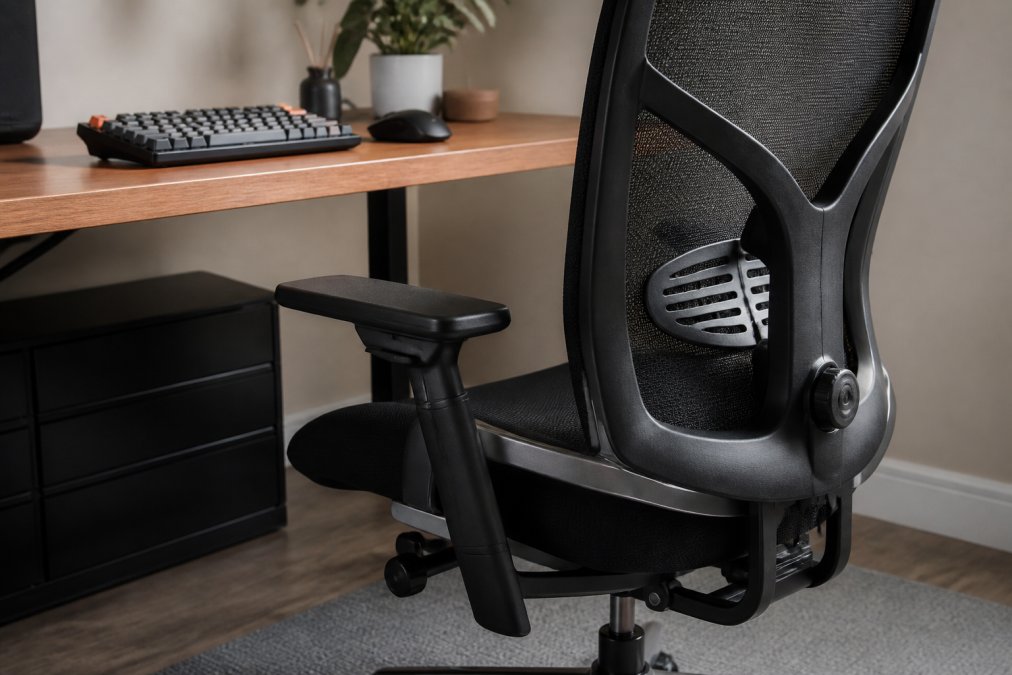
Chairs, Keyboards and Mice: The Core Ergonomics
An ergonomic chair with adjustable lumbar support and seat height is the single most important purchase. Set the seat so your feet sit flat and your knees rest level with your hips, then adjust the lumbar support to fill your lower back's curve.
Accessibility-Focused Tech for Diverse Needs
Accessibility-focused tech is where most roundups stop short, and it matters. Adjustable-height desks, larger keycaps, high-contrast displays and screen-reader-compatible peripherals make a setup usable for different physical needs.
How to Set Up an Ergonomic Workstation Step by Step
Setting up an ergonomic workstation takes about 30 minutes and follows a fixed order: chair and screen first, then accessories around them.
- Position the chair: feet flat, knees level with hips, lumbar support filling your lower back.
- Set the desk height so your elbows rest at roughly 90 degrees when typing.
- Place the monitor at arm's length, with the top of the screen at or just below eye level.
- Add a monitor stand or riser if the screen sits too low.
- Position the keyboard and mouse so your wrists stay straight and your shoulders relaxed.
- Check lighting so the screen does not reflect a window behind you.
Best Charging Solutions for Home Office Power and Connectivity
The best charging solutions for a home office combine a charging hub, a docking station and enough port expansion to run your whole desk from one cable. A laptop docking station connects a monitor, keyboard, mouse and network through a single connection, but the details decide whether it works.
Match Wattage Before You Buy
USB Power Delivery (USB-PD) is the standard most modern laptops, phones and tablets use to negotiate charging speed. The charger and device agree on a voltage and current profile, so a 30W charger tops up a phone quickly but barely holds a laptop under load. Common wattages:
- Ultraportable laptops: 45W to 65W over USB-C
- Larger laptops and mobile workstations: 90W to 140W, often needing a proprietary barrel or magnetic connector
- Phones and tablets: 18W to 30W
- Headphones and wearables: 5W to 10W
Docking Stations vs Hubs
A docking station typically provides power delivery, multiple display outputs, Ethernet, audio and several USB ports through one cable. A hub is smaller and usually bus-powered, sharing the laptop's power budget and potentially dropping a display or drive when load spikes. For a fixed desk, a powered dock is more reliable; for travel, a compact hub is easier to pack.
Surge Protection and Power Management
A surge protector is not the same as an extension lead. It contains a metal oxide varistor (MOV) that diverts excess voltage from your equipment, and carries a Joule rating indicating how much energy it absorbs before failing. Higher Joule ratings last longer under repeated small surges. Look for a visible indicator light so you know when the MOV has degraded and the unit needs replacing.
| Solution | Best For | Key Feature |
|---|---|---|
| Laptop docking station | Multi-device desks | Single-cable connection with power delivery |
| Desktop charging hub | Phone, tablet, headphones | Multiple USB ports with shared power budget |
| Wireless charging pad | Quick top-ups | No cable wear, lower efficiency than wired |
| Portable power bank | Travel and commuting | Recharges on the move, capacity in mAh or Wh |
Cable and Port Standards to Check
USB-C is a connector, not a guarantee of speed or power. The same physical port can carry USB 2.0 data, USB 3.2 data, Thunderbolt, DisplayPort video or USB-PD power, and the cable in the box may only support some of those. When buying a dock or cable, check data transfer rate, video output and power delivery separately.
Essential Tech Accessories for Remote Workers: Monitors, Webcams and Audio
The essential tech accessories for remote workers in this group shape how you see, sound and are seen. A high-definition monitor with a decent refresh rate reduces eye strain and makes long documents easier to read.
Noise-Cancelling Headphones and Microphones
Noise-cancellation headphones block background sound so you can focus, and a dedicated microphone makes your voice clear on calls. Low latency keeps your speech in sync with the video.
Lighting and Ring Lights for Video Calls
Ambient lighting and a ring light fix the most common video-call problem: a face in shadow. Place a ring light behind your webcam so it lights you evenly, and add soft ambient light to avoid harsh contrast.
Small-Space and Energy-Efficient Accessories for Remote Workers
Most buying guides assume a dedicated office with a door. If your desk lives in a corner of a shared room, a bedroom or a cupboard under the stairs, the accessories that matter are different.
Making a Closet Office Work
A wall-mounted monitor arm is the single biggest space saver. It removes the monitor's base from the desk and lets you push the screen flat against the wall when you finish for the day. Look for a VESA-compatible arm with a gas spring rated above your monitor's weight, and check the wall fixing suits your wall type, plasterboard needs a stud finder or dedicated cavity fixing, not a standard plug.
Managing Noise and Light in Shared Rooms
In a shared room, a directional microphone or a headset with a boom arm picks up less background noise than a laptop's built-in mic. A folding acoustic panel or heavy curtain behind you reduces echo on calls and packs away afterwards. For lighting, a small LED panel with adjustable colour temperature is easier to store than a ring light and gives more even light on your face.
Energy Efficiency: What to Look For
Energy efficiency in a home office comes down to three things: standby draw, charging efficiency and how many devices you leave plugged in.
- Standby draw: Many chargers and docks continue to draw a small amount of power when nothing is connected. A charger with a low no-load consumption figure wastes less overnight. Smart power strips that cut power to peripherals when the main device sleeps are a practical fix.
- Charging efficiency: Wireless charging pads lose more energy as heat than a wired connection, so use them for overnight top-ups rather than as your main charger. Wired USB-C charging is more efficient for daily use.
- Consolidation: A single dock running your monitor, keyboard, mouse and network uses less power than five separate chargers left plugged in, and it cuts your cable count at the same time.
A Practical Small-Space Checklist
- Mount the monitor on an arm and push it flat when not in use.
- Use a folding or castor-mounted desk if floor space is shared.
- Store cables and adapters in an under-desk drawer.
- Choose a headset with a boom mic over a laptop mic in shared rooms.
- Consolidate chargers into one dock with a smart power strip.
- Check the energy label before buying any monitor or large appliance.
These choices cut both your bills and your cable count, and make a small workspace feel deliberate rather than improvised.
Cybersecurity Hardware and Cable Management Essentials
Cybersecurity hardware protects the work you do from home. A privacy filter stops shoulder-surfing on trains and in shared spaces, while biometric security on your laptop or a hardware security key adds a layer beyond a password.
Conclusion
Building a home office that supports long days takes a clear order of priorities, not a long shopping list. Start with ergonomics, add power and connectivity, then finish with audio, security and cable management.
Frequently Asked Questions
What are the most essential tech accessories for a productive home office?
The essentials include an ergonomic chair or lumbar support, a mechanical keyboard and mouse, a high-resolution monitor with an adjustable stand, a reliable webcam, noise-cancelling headphones, a docking station or charging hub, and cable management tools. These items improve comfort, connectivity, and workflow, helping you stay focused during long remote work sessions.
How can I improve my remote work setup on a budget?
Start with small upgrades that have the biggest impact: a supportive cushion or lumbar roll, a wireless keyboard and mouse set, a USB hub for extra ports, and a clip-on ring light for video calls. Look for multi-purpose accessories like a charging stand that also organises your desk. Many affordable options exist, so prioritise comfort and connectivity without overspending.
Do I need a docking station for my remote work setup?
A docking station or hub is useful if you connect multiple peripherals like a monitor, keyboard, mouse, and external storage. It simplifies cable management and lets you switch between devices quickly. If you use a laptop with limited ports, a docking station can expand connectivity and reduce clutter, making your workspace more efficient.
What are the best noise-cancelling solutions for home workers?
Over-ear noise-cancelling headphones are effective for blocking background noise and improving focus. For calls, a headset with a boom microphone or a standalone USB microphone reduces echo and background sound. Look for models with good passive isolation and a comfortable fit for long wear. These accessories help maintain productivity in shared or noisy environments.